December 16th - AI Training using Meta DM's & Posts
Learn how to opt out or turn off Meta and Google AI information gathering.
In case you missed it, Google and Meta recently came out with new integrations that read and sweep messaging to train their AI algorithms and language.
On Google, this means it reads your emails, including archives and integrate the messages into their AI platform Gemini.
On Meta this includes all messages including DMs on all their platforms that have ever been sent. That means Facebook, Instagram, Threads, and WhatsApp. Meta will begin pulling this data on December 16th, 2025
Both these platforms include voice memos, attachments and any written language still visible on your platform, this includes any past items or messages whether they have been deleted, hidden, blocked, kept in drafts etc.
Here is a step-by-step guide on how to opt out of these integrations. Make sure that you were doing this on all personal or professional accounts you do not want Meta or Google's AI to access.
Meta:
Connect to your Facebook account using a desktop browser. (This can't be done on mobile)
Click on your icon on the top right then select Settings & Privacy.

Now click on Privacy Center

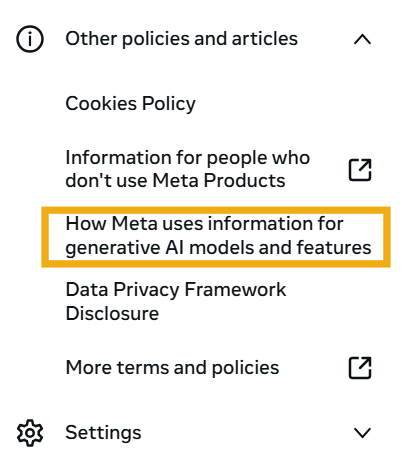
Click on Other policies and articles

A drop down menu will appear, you’ll select “How Meta Uses information for generative AI models and features"
From here, you’ll want to select the 3rd option, “Privacy and generative AI”

Scroll down and select “Learn more and submit requests here”

This will lead you to a form titled Data Subject Rights for Third Party Information Used for AI at Meta. Check the box at the bottom of the form which will open up more prompts.

Complete the form and click send.

Gmail:
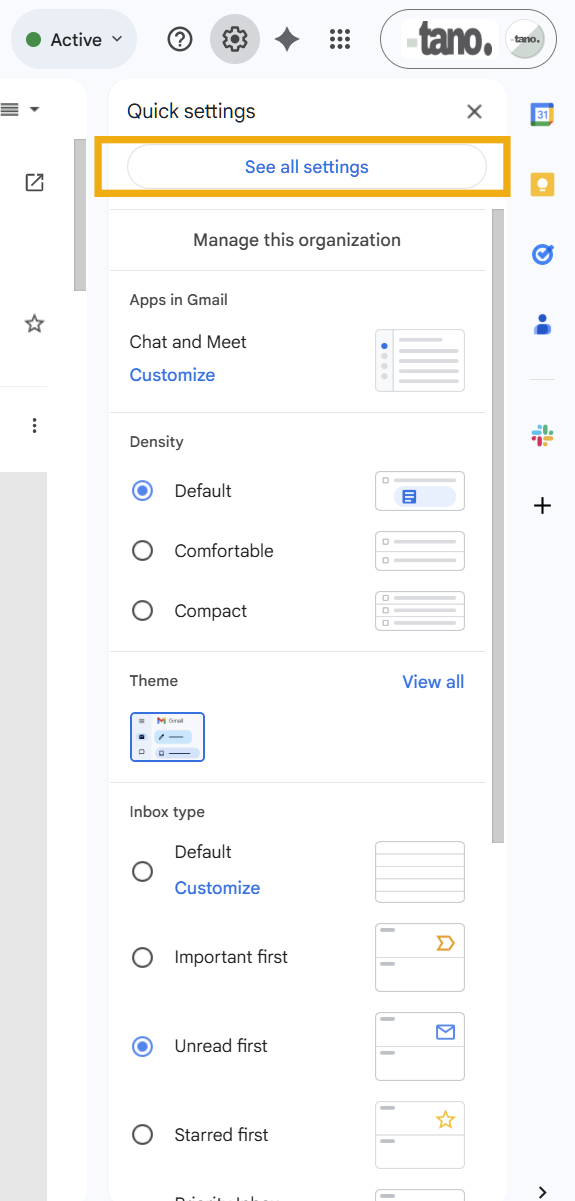
Whether you’re using a personal or business account, Open your gmail account in a browser and click on the gear on the top right. Then click on “See All Settings”
Under the “General” Tab, school down until you see “Smart Features:”
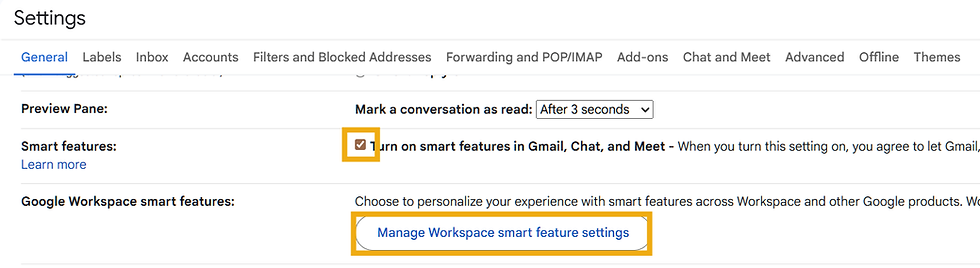
Click “Manage Workspace smart features” and uncheck any features you do not want Gemini to have access to. The click save.

Keep in mind that doing this in Google could drastically change your experience within the platform depending on how you use it since Gemini features have been lumped in with features such as Events in Gmail in Calendar and such.


Comments